How to Access and Master the Camera Screen in Your 2024 Ford F‑250
Why Knowing Your F‑250’s Camera System Matters
Driving a full‑sized truck like the 2024 Ford F‑250 comes with challenges—tight parking, towing trailers, navigating obstacles, and watching for blind spots. Ford’s advanced camera system transforms these tasks, offering real‑time views around your truck for all-around confidence on the road.
But many owners don’t know how to fully access or customize these camera settings. That’s where this step‑by‑step guide comes in—covering all camera angles, activation methods, troubleshooting, and pro tips to optimize visibility and safety.
🛠️ Overview of Camera Systems on the 2024 Ford F‑250
Ford equips the F‑250 with multiple cameras that serve different needs:
- Front camera: Ideal for tight spots or off‑roading, helping you spot rocks, curbs, and other obstacles.
- Rear camera: Activates automatically when shifting into reverse; includes a trailer‑hitch mode.
- Side cameras: Provides blind‑spot viewing when changing lanes or maneuvering.
- Cargo‑bed camera: Offers a clear look at your load and hitch connection.
- 360° surround (top‑down) view: Combines feeds from several cameras to give you a bird’s‑eye perspective for precise parking and towing.
📱 Methods to Access Your Camera Views
There are three ways most drivers will interact with the camera system:
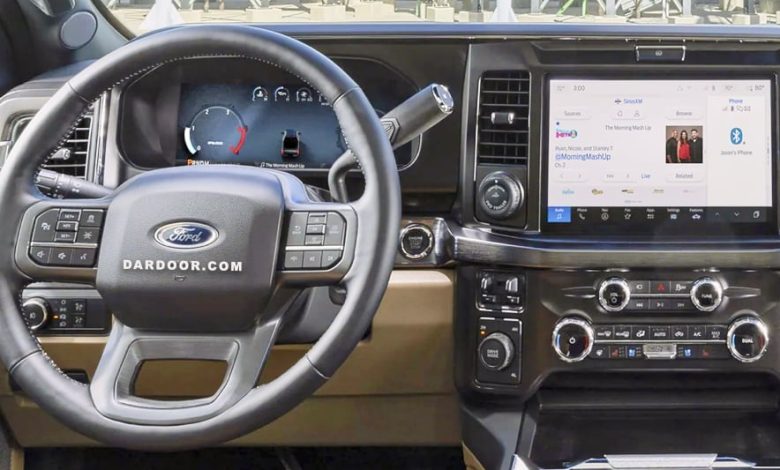
1. Through SYNC 4 / SYNC 4A Infotainment Screen
This is the most intuitive method:
- Start your F‑250 and power on the infotainment screen.
- Tap the Camera icon if it’s visible on the home screen. If not, go to Settings → Camera.
- Choose your desired view—rear, front, side, cargo bed, or full 360°.
- Want to switch quickly? Toggle between modes using on‑screen prompts.
2. Using the Physical Camera Button
Some trims have a dedicated hardware button (usually near the infotainment system or dash):
- Press the button to cycle through available views.
- Handy when you don’t want to touch the screen—like during parking or trailer hookups.
3. Automatic Activation Modes
- Reverse Gear: Shifting into reverse automatically initiates the rear camera view.
- Tow Mode: When connected to a trailer, the system may automatically activate a specialized trailer‑hitch view to assist alignment.
🎛️ Personalize Your Camera Settings
To improve visibility and usability, Ford allows you to tweak your camera settings via the infotainment menu:
- Brightness & contrast: Enhance visibility in low light or reduce glare in bright conditions.
- Dynamic guidelines: Activate these for on‑screen steering‑angle lines to assist with trailer alignment and precise parking.
Use these customization features to match your driving environment and personal preference for enhanced clarity and safety.
🧹 Troubleshooting Common Video Issues
If the camera screen isn’t functioning properly, here’s how to troubleshoot:
Clean the Lens
Dirt, ice, mud, or debris can obscure camera views. Gently clean all camera lenses with a microfiber cloth.
Reset the SYNC System
If you’re experiencing glitches:
- Turn off the vehicle, remove the key, and wait a few minutes.
- Restart the vehicle and check the camera system again.
Update Your Software
Firmware problems may cause camera errors:
- Navigate to Settings → Software Update in SYNC.
- Download and install any pending updates.
Inspect Wiring After Modifications
If aftermarket accessories (e.g., trailer wiring harnesses, bed modifications) have been installed:
- Inspect all camera module connections.
- Tighten or reseat any loose or damaged plugs.
When to See Your Ford Dealer
If problems persist after trying the above:
- Consult your owner’s manual for warranty and maintenance guidance.
- Visit a certified Ford dealership or technician for diagnostics.
🧩 Pro Tips for Maximizing the Camera System
Use Before You Tow
Before hitching your trailer:
- Clean lens.
- Activate trailer camera view.
- Toggle dynamic guidelines.
- Approach hitch slowly and align visually using camera overlays.
Night‑time Parking
Switch to a high brightness/contrast setting in low-light conditions.
Off‑road or Construction Zones
Use front and side cameras to avoid damage from curbs, rocks, or debris.
Combine Visual Cues with Mirrors
Even with high-tech visuals, always rely on side mirrors and scanning your surroundings for full awareness—especially in freeway lane changes.
✅ Safety Checklist Summary
| Step | Action |
| Turn on ignition | Powers the infotainment system |
| Launch camera view | Tap screen icon or press camera button |
| Adjust settings | Tweak brightness, contrast, and dynamic lines |
| Clean camera lenses | Remove dirt or debris impacting visibility |
| Reset SYNC if glitch occurs | Power down, wait, then restart vehicle |
| Apply software updates | Keep firmware up to date |
| Inspect wiring (after mods) | Fix any loose or damaged plugs |
| Call dealer if unresolved | Seek expert diagnostics and support |
🚀 Driving With Confidence: Final Thoughts
Ford’s camera system on the 2024 F‑250 is a powerful safety tool—especially for towing, parking, or navigating challenging terrain. With this guide, you’ll be able to:
- Access all available camera angles—manually or automatically
- Fine‑tune display settings for better visibility
- Address and resolve most common display issues
- Maximize safety and precision when working around your truck